
Same recording. Notes and a dental chart.
· Whippet Notes · 3 min read

You already record the dental. Whippet writes the clinical note from that audio. It now turns spoken dental findings into a Dental Chart, alongside your clinical notes, from one recording — permanent dog and cat teeth, with tooth numbers, statuses, and a note on each finding.
Review the draft, make any corrections, and export a PDF report. That is the whole feature.
How it works
- Record the consult the way you already do. Spoken findings are enough — for example: “108 has a slab fracture. Extraction recommended. 305 is missing.”
- Wait for processing to finish before you edit.
- When the recording has chartable dental findings for a dog or a cat, a Dental Chart tab appears on the consult. A Canine or Feline badge tells you which diagram you are on.
- Review and correct the findings. Teeth use modified Triadan numbers: 42 for dogs, 30 for cats. The patient’s right is on your left. Select a tooth, set the status, edit the clinical note, click Save. Selecting a tooth alone does not change its status. Reset throws away local edits and reloads the last saved chart.
- Export a PDF report when you need it out of Whippet. Patient name and consultation date go on the report when we have them. Copy image and PNG are still available if you need an image instead.
You do not start a second recording. You do not fill a blank diagram from scratch.
What the colours mean
Plain language. The legend is on the chart.
- Not evaluated — outline. No evaluation recorded. Unmentioned teeth usually stay here.
- Evaluated — green. Examined. Not necessarily normal. Read the note.
- Missing — grey. Absent (may include a previous extraction).
- Extracted — red with an X. Done this visit.
- Treatment — orange with a ring. Finding, recommendation, or plan — detail is in the note.
If you said “108 needs extraction”, that is Treatment, with the plan in the note. If you said “108 was extracted today”, that is Extracted. Those are not the same status. Always check.
Review, then save
The draft is not the record. Change the status. Edit the note. Save.
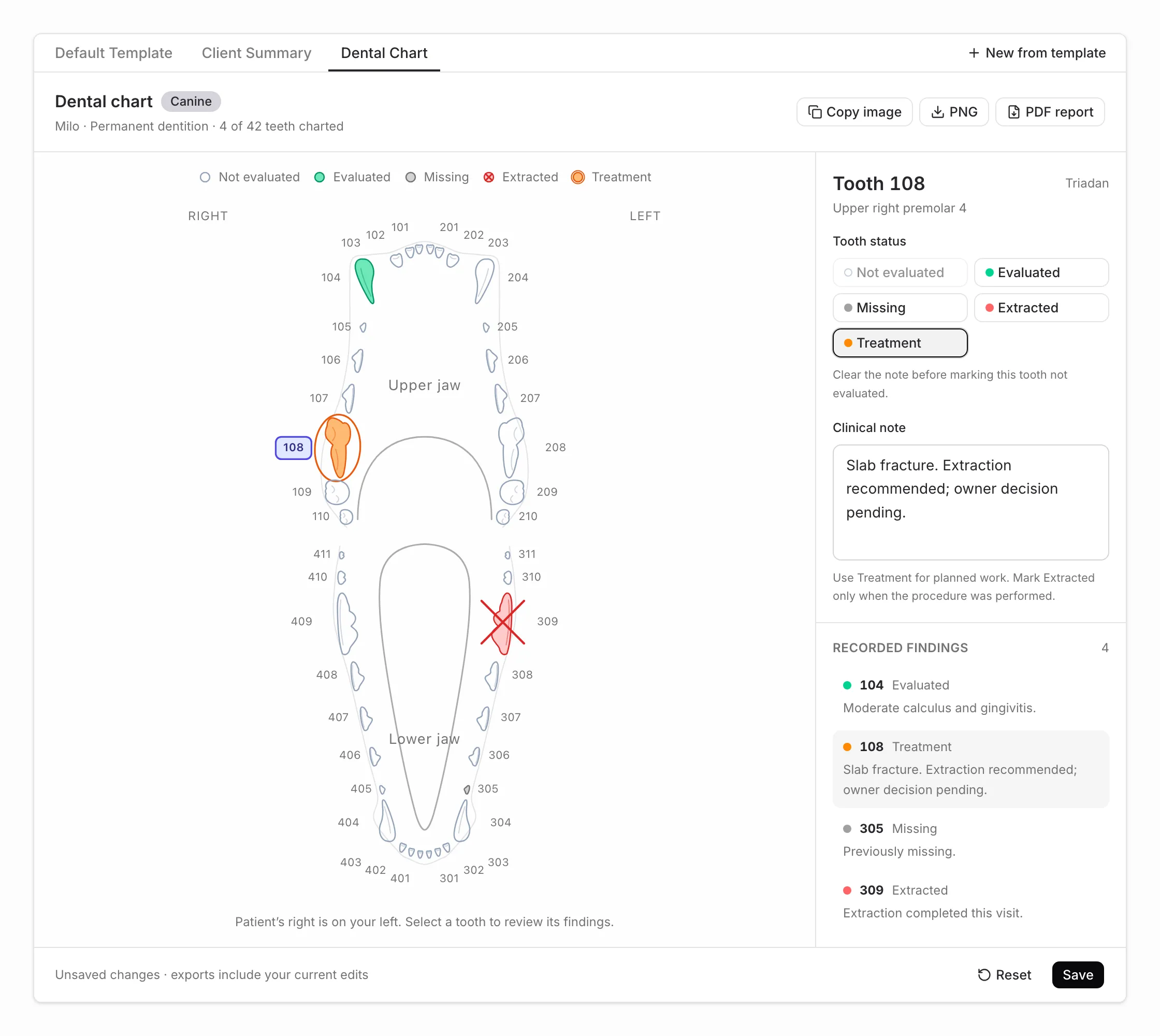
Export is separate. It can include unsaved edits (reports labelled Draft · unsaved changes). A saved report says Saved chart — that label is not clinical approval. Export does not save the chart in Whippet. Click Save when the review is finished.
Get the chart out
- PDF report — primary path; printable; findings can run onto extra pages.
- Copy image / PNG — when you need an image attachment or paste.

The dental report is exported separately from the written notes. Attach or paste into your practice management system the way that system already takes a file or an image. Whippet does not fill the PMS’s own dental-chart fields. For the written note, keep using the usual copy or sync path.
What this is not (yet)
Permanent dog and cat teeth only. Not a full periodontal probing chart. Does not fill PMS dental fields. Not a replacement for a complete dental examination or the rest of the clinical record. Not a general-anaesthetic chart — that is a different problem.
Also not yet: other species; deciduous or mixed dentition; the diagram inside the note template or DOCX.
We are not going to tell you this ends burnout, or that nothing was missed, or that the AI made a diagnosis. It drafts a chart from what was said. You decide what is correct.
Start a 30-day trial. Record a dog or cat dental the way you already do. Open the Dental Chart tab, review it, save it, export the PDF when you need it.
Already on Whippet? Same recording. The tab appears when there is something to chart. How it works: Dental charts from your consult audio.